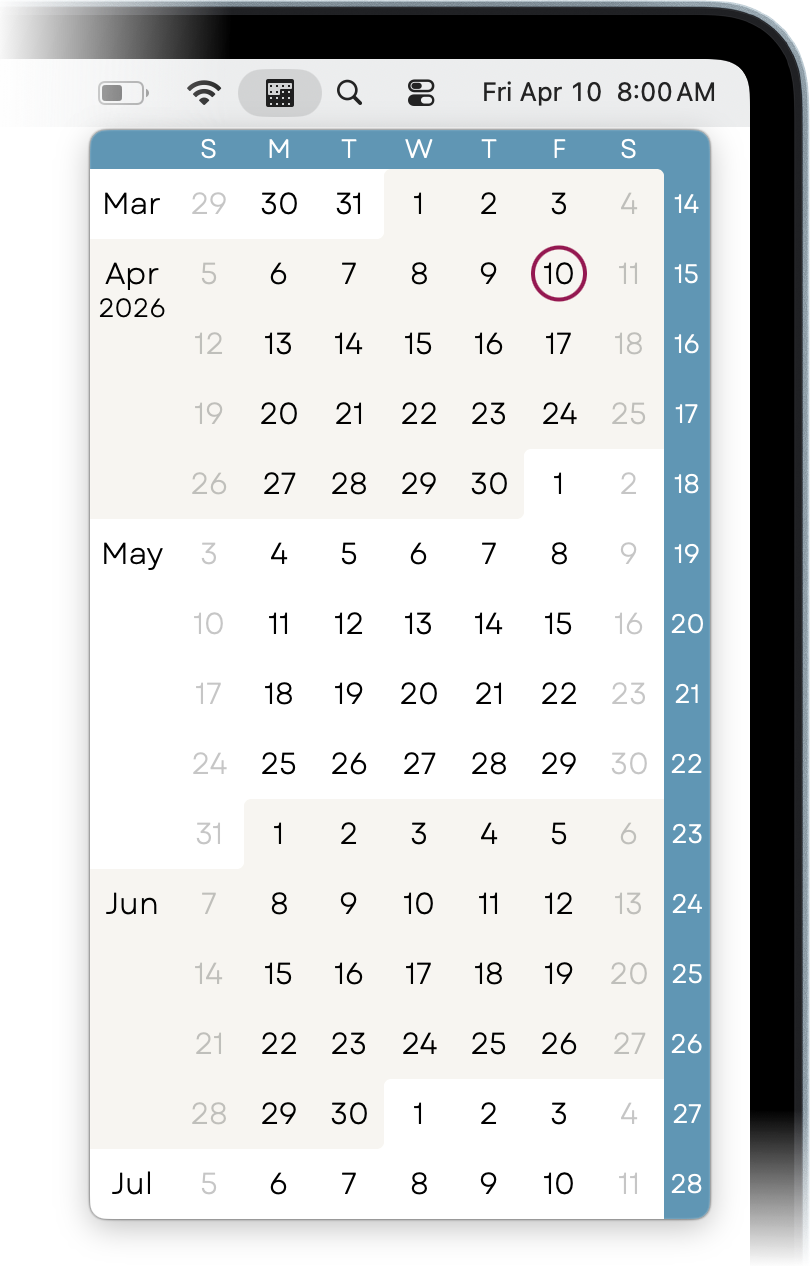

Using 3MC
Click on the menu bar icon to open or close 3MC. While open, it stays on top of all other windows and won’t take keyboard focus, so you can leave it up while working on other things.
It always opens with today’s date visible. It selects the three months to show based on your settings; you can choose to put today’s month at the top, middle, or bottom of the view, or to always present the current quarter.
With the calendar open, you can freely scroll up or down with your
mouse’s scroll wheel or trackpad’s gestures. Alternatively, if the toolbar
is visible, click
up  or
down
or
down  to scroll up or down, and click the target (today) button
 to scroll back to the initial position.
Access the 3MC menu by right-clicking on the menu-bar icon or, if the
toolbar is visible, by clicking on the menu button
 .
.
From 3MC’s Settings page, you can show or hide the toolbar, choose a color scheme, set a size, configure which calendar events it shows, assign a keyboard shortcut, and more.
First-time setup
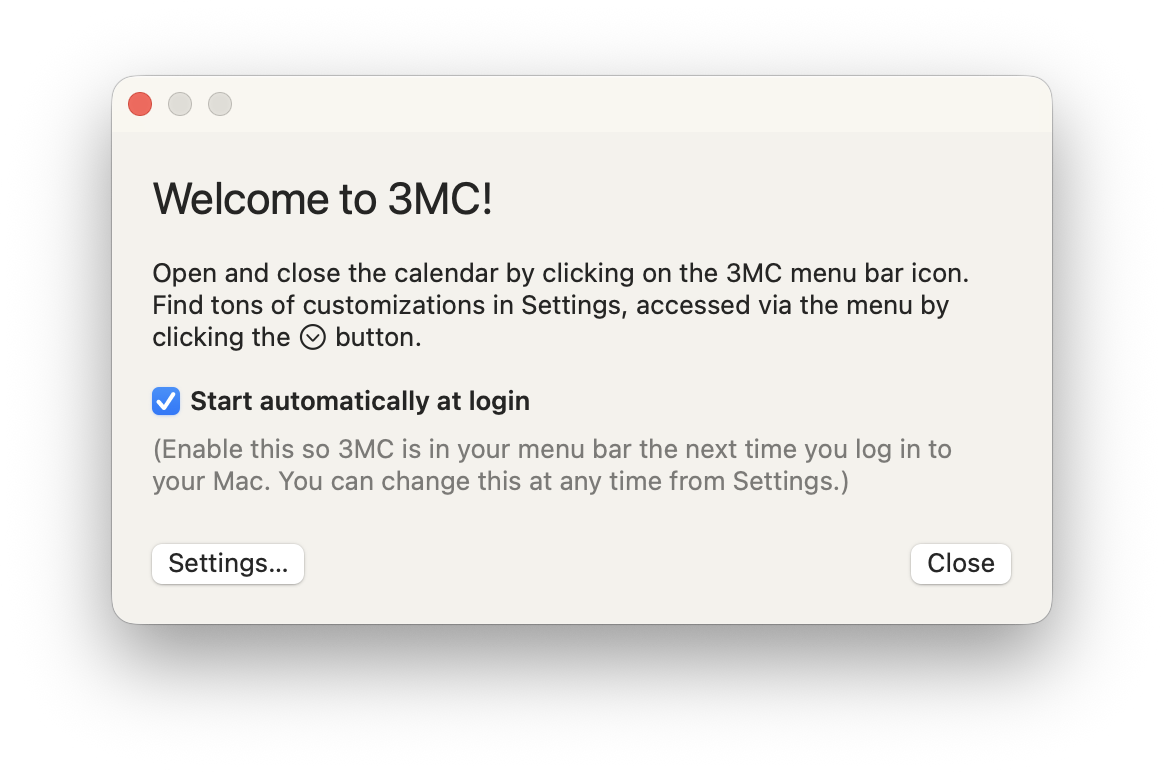
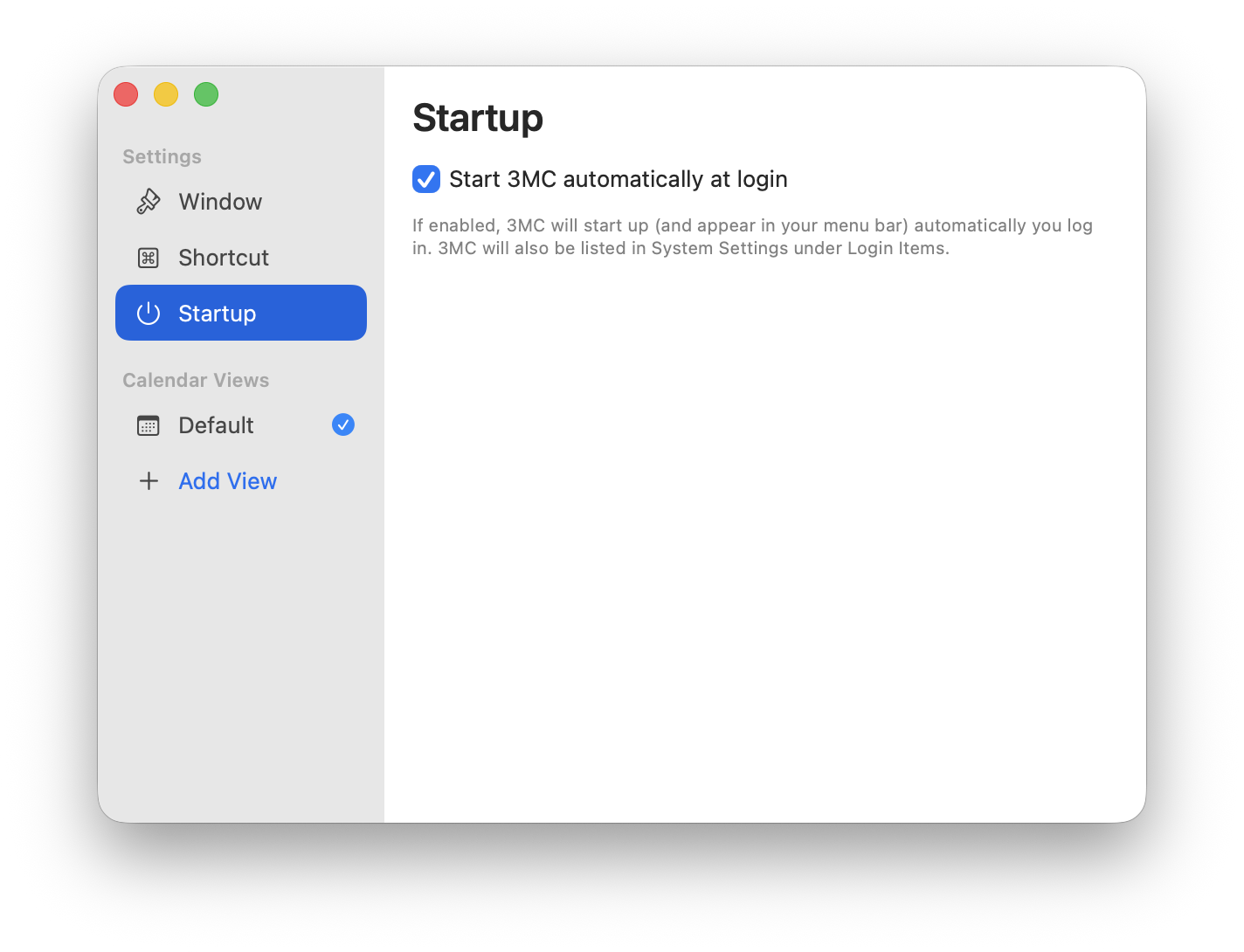
When you first launch 3MC, an intro window will appear. You probably want to check the “Start automatically at login” box. You can always change this later.
Configuring the calendar window
The first settings panel is for general calendar-window options.
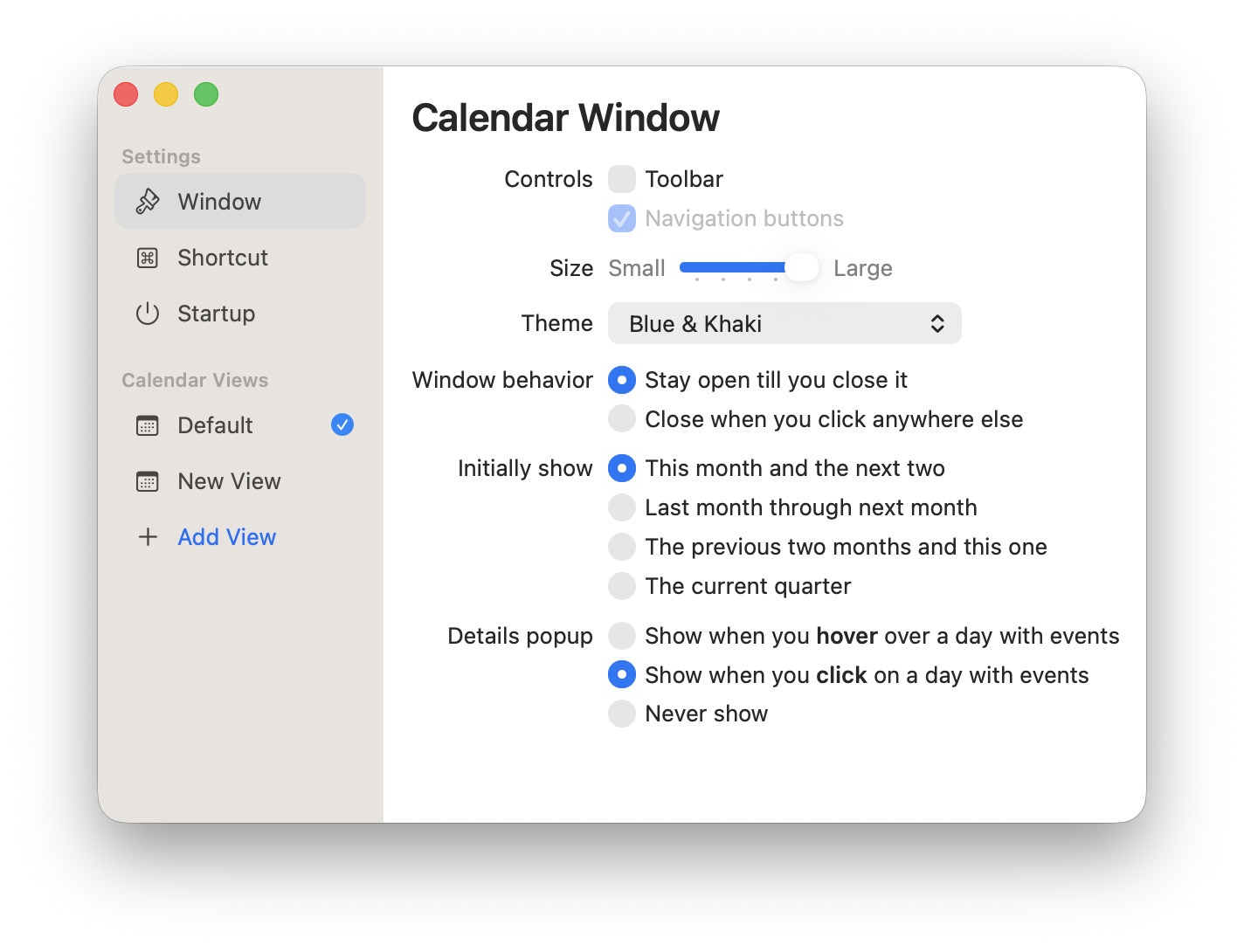
The first few options control how the window looks.
- Show or hide the little toolbar at the top. I tend to turn it off, for maximum minimalness, but then you need to remember the right-click action to get to the menu.
- Choose from five different sizes; this affects text sizing as well as overall calendar size, but every size shows exactly the same information.
- Pick a theme. By default, it follows your system light/dark mode switch with two basic themes, but you can choose between several different and more colorful options.
The next few options control how it behaves.
- Choose “window behavior” based on how you want to use it. Do you want it to stay floating on top as you use other apps, perhaps as a reference or guide? Or do you want it to disappear when you go back to work elsewhere?
- “Initially show” applies to the dates shown each time you open the calendar from the menu bar, as mentioned above under Basic Usage.
- The “details popup” is a little floating window that lets you see what events are on a marked day. It can be tied to hovering or clicking, or be turned off if you just want a static calendar.
Configuring the menu bar item
By default, 3MC puts its icon in the menu bar. Some people might prefer to put an indicator of today’s date instead; this lets you turn off macOS’s built-in date, saving a bit of space. There are two options: one is a minimal weekday and day number, stacked like you might see on a desk calendar, and the other is a plain-text date, using a format selected from a short list. The plain-text date has variations including months, days, and weekdays.
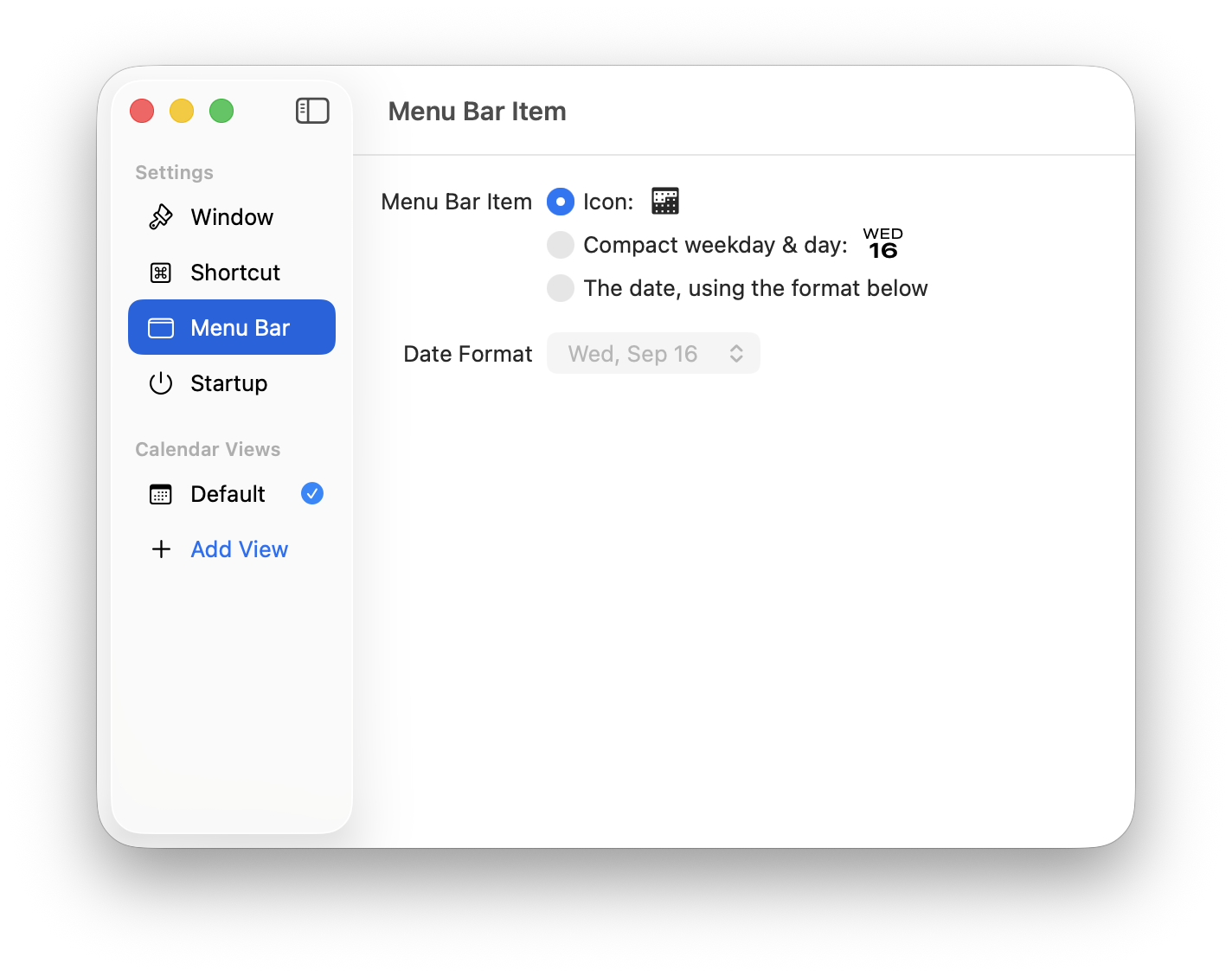
Note: the formatted text date will use your Mac’s System Settings for language and format. The compact weekday/day display currently only supports English.
Configuring startup and the keyboard shortcut
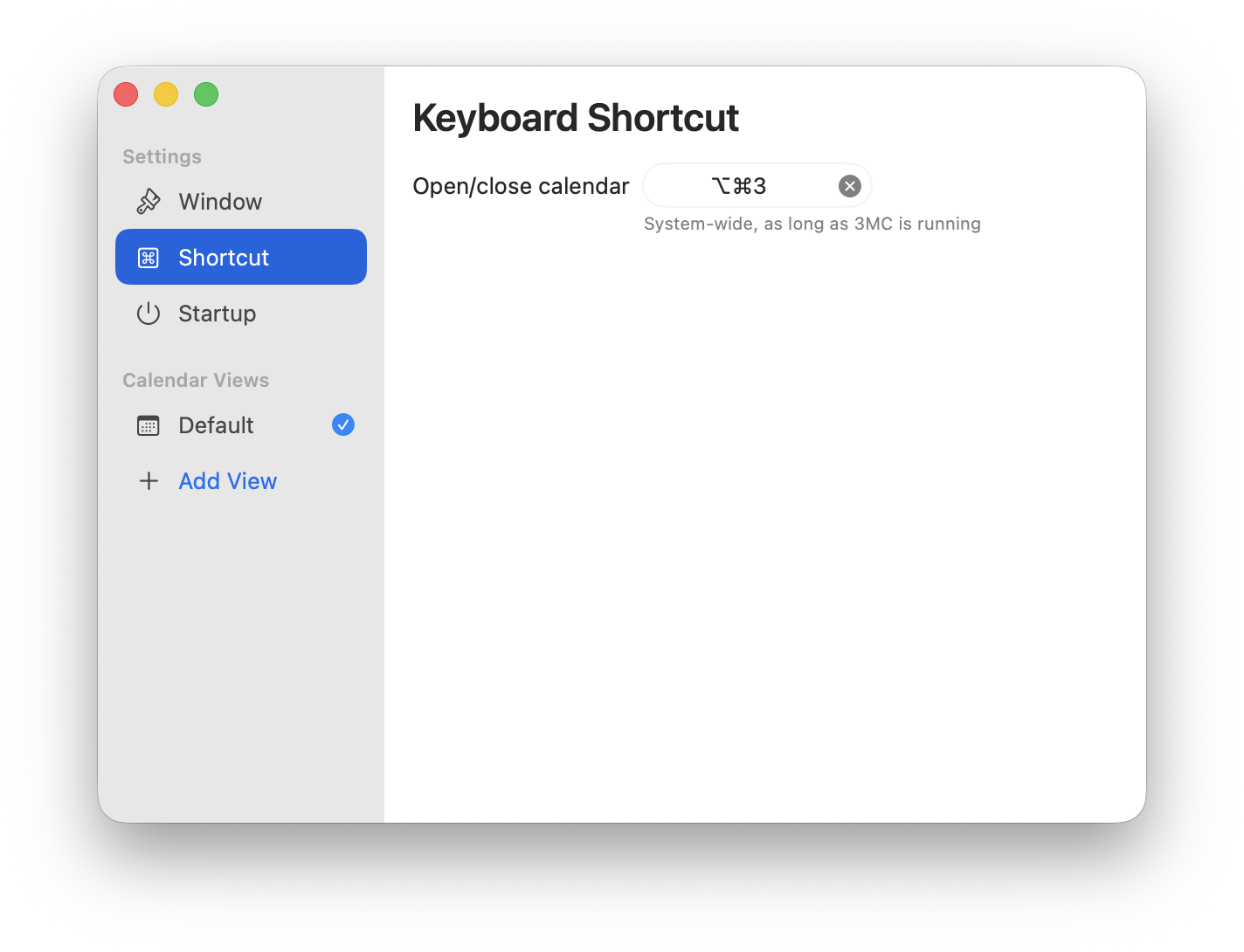
Use the Shortcut panel to give yourself a global hotkey to open/close the calendar for rapid access. This works from anywhere, as long as 3MC is running, and as long as you’re not using another app which takes over that shortcut.
Use Startup to make sure 3MC is always in your menu bar by making it a Mac Login Item. Or not, if you don’t always want it there. You can always run it from Applications.
Calendar views
A calendar view lets you configure the labels and events shown in 3MC, if any. You start with one view, called “Default”; you can stick with that or create additional views for different contexts like work vs. personal or different projects.
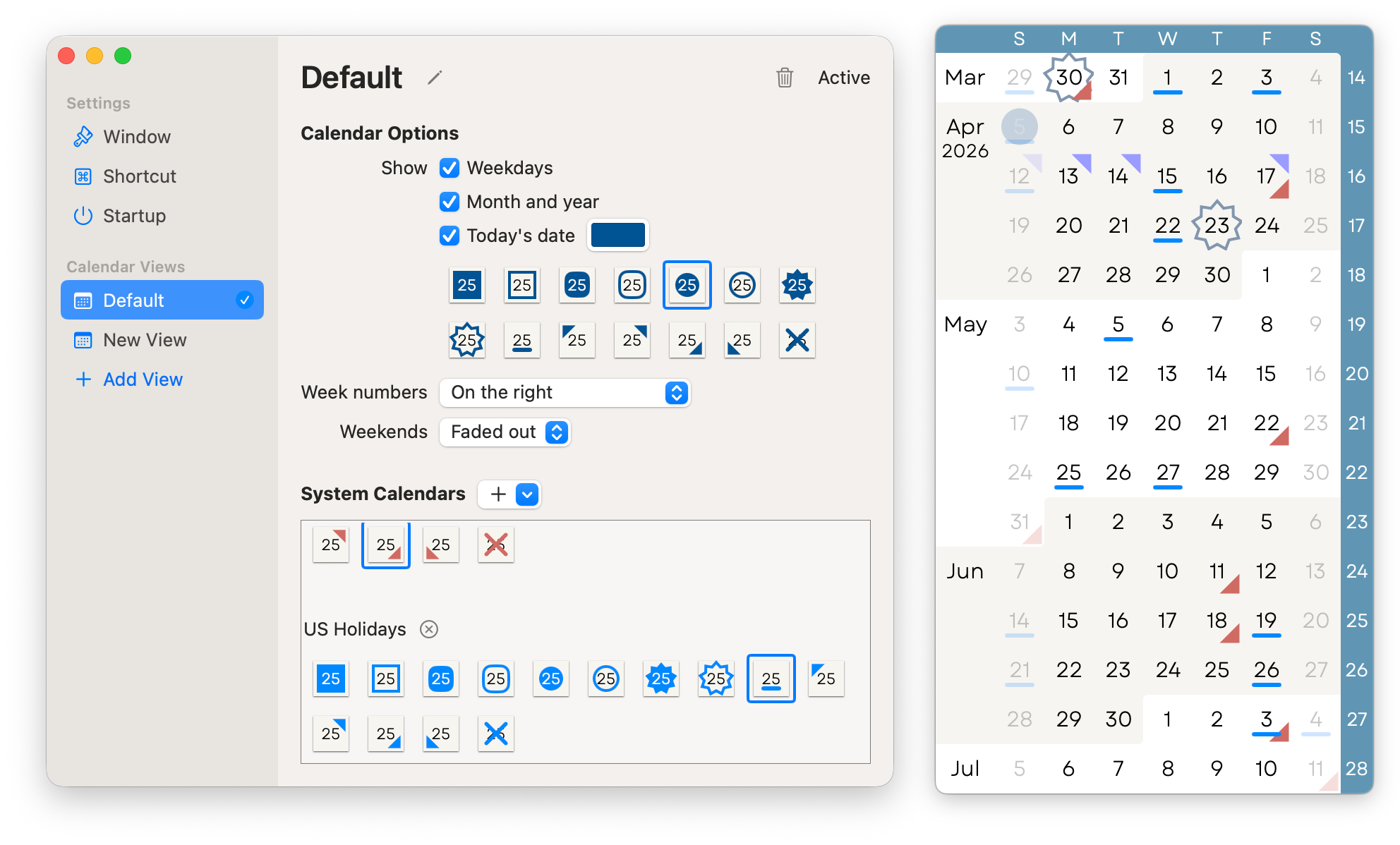
Each calendar view can be independently set up to show weekday names, week numbers, weekends, month labels, a highlight for the current week, and a marker for today’s date, and each one has its own set of system calendars you add. (These calendars are from your Mac’s Calendar app.)
You can choose a marker style for each calendar. 3MC offers a selection of markers, and layers all applicable markers on any given day.
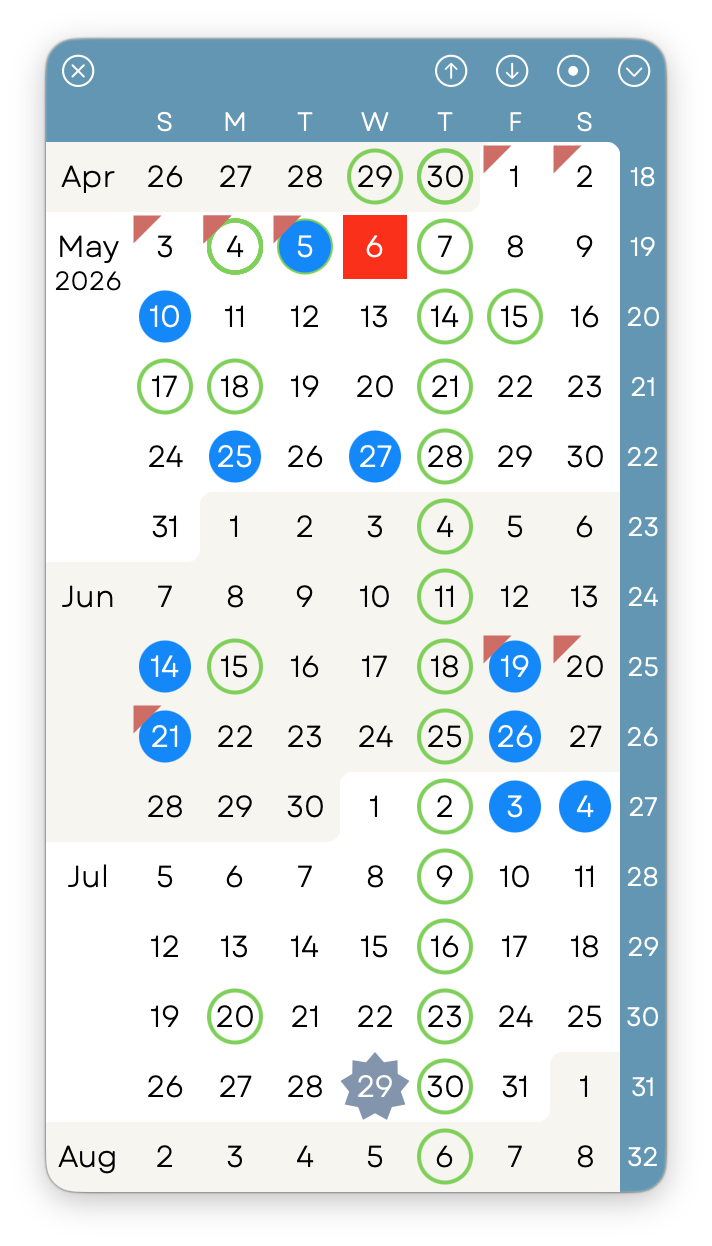
Once you have more than one calendar view, you can switch between them in a few places, including the app’s menu and the Settings dialog.
You can also use an action from within the Shortcuts app, if you want to automate this switching.
Viewing events
When a calendar day has one or more event markers on it, simply hover your mouse over it to see a brief summary. The squares reflect the calendar colors, and the events’ titles and time ranges are shown.
In Settings, you can switch this popup to a “sticky” mode where you have to click on a date to pop up its events, and click on a close button to make it go away.
Localization
3MC partially adapts to your Mac’s system-wide settings. It always uses the Gregorian calendar (in which the current year is 2026), but it will use your local preferences and language for weekday and month names, date formats, the first day of the week, which days are weekends, and so forth. I’ve personally tested it with a fair number of languages and settings, but it’s possible you’ll use a combination which doesn’t look quite right; let me know and I’ll try to fix it!
The menus and other parts of the user interface are all in US English, however.
Acknowledgments
Since version 3, the app has been using Type Forward’s fantastic font Garet Book for the calendar view.
Since version 2, the app has incorporated Sindre Sorhus’s KeyboardShortcuts package to set up and handle global Mac keyboard shortcuts. It’s easy to use, pure Swift, well-documented, and free software under the MIT license.
Since being redesigned in April 2026, this website has used Jacques Le Bailly’s beautiful font Crimson Pro. Crimson Pro is free and open source under the SIL Open Font License 1.1.
Privacy
My apps don’t track you, collect data on you, or send any of your data off device. 3MC officially uses the Casual Programmer Privacy Policy, which I wrote to apply to several of my apps. It’s short; you can go read it.
Note that, if you enable calendar event display in 3MC, it will request “full access” to your calendars. If you grant this permission, 3MC will only use it to read and display those events within the app. It will not modify your calendars or save or send your calendar contents anywhere. (In macOS, “full access” is the only way for an app to request the ability to query and display your events.)
History
- Version 3.3.2, Sep 25, 2026, fixed two more bugs. The formatted date option for the menu bar item is now always localized to your language, and the opening animation should now be consistent (some users reported seeing an alternate animation that wasn’t meant to be used).
- Version 3.3.1, Sep 18, 2026, fixed a bug: when using macOS’s Improve Contrast setting, the week number column in 3MC would be messed up.
- Version 3.3, Sep 15, 2026, added options to replace the menu bar item’s icon with today’s date, including the little desk-calendar-style weekday/day display, which I think is kinda cool. It also fixed some issues specific to macOS 27, and dropped support for macOS 13 and 14.
- Version 3.2, May 12, 2026, added an option to highlight the current week, improved the calendar configuration UI, further polished the calendar window and animations, fixed handling of some weekend setups, fixed handling of duplicate calendar names, and adapted to changes in macOS.
- Version 3.1, Sep 21, 2023, updated 3MC’s calendar access code for changes Apple made in macOS Sonoma.
- Version 3, Apr 5, 2023, introduced switchable calendar views, revamped the Settings screen, added new themes and sizes, switched the default calendar font, and integrated with Ventura’s updated Login Items in System Settings.
- Version 2.1.1, Oct 27, 2022, was an update to adapt to some changes in macOS Ventura (while retaining older OS support).
- Version 2.1, Mar 3, 2022, was an incremental improvement, with updates to date views, scrolling, and settings.
- Version 2, Feb 14, 2022, added macOS Calendar integration to show events, along with keyboard shortcut support and much more configurability.
- Version 1, Nov 3, 2021, was an initial, simple calendar viewer with no event display.
- The original 3MC was one of the first apps I built when picking up iOS development in 2008. I never released it, but my wife and I used it on our early iPhones. It had the same continuous week view, open-ended bidirectional scroll, and three-month window, and the idea stuck with us.
My Other Apps
TimeStory lets you build graphical timelines of all sorts: project plans and roadmaps, ancient or recent history, family stories, schedules, and more.
Two powerful, native, compatible editions: TimeStory for Mac (the original) and TimeStory for iPad and iPhone. Each one offers a free trial and a one-time purchase option.